The Lab: Automating an Archive of Web Simulations
14/02/2026
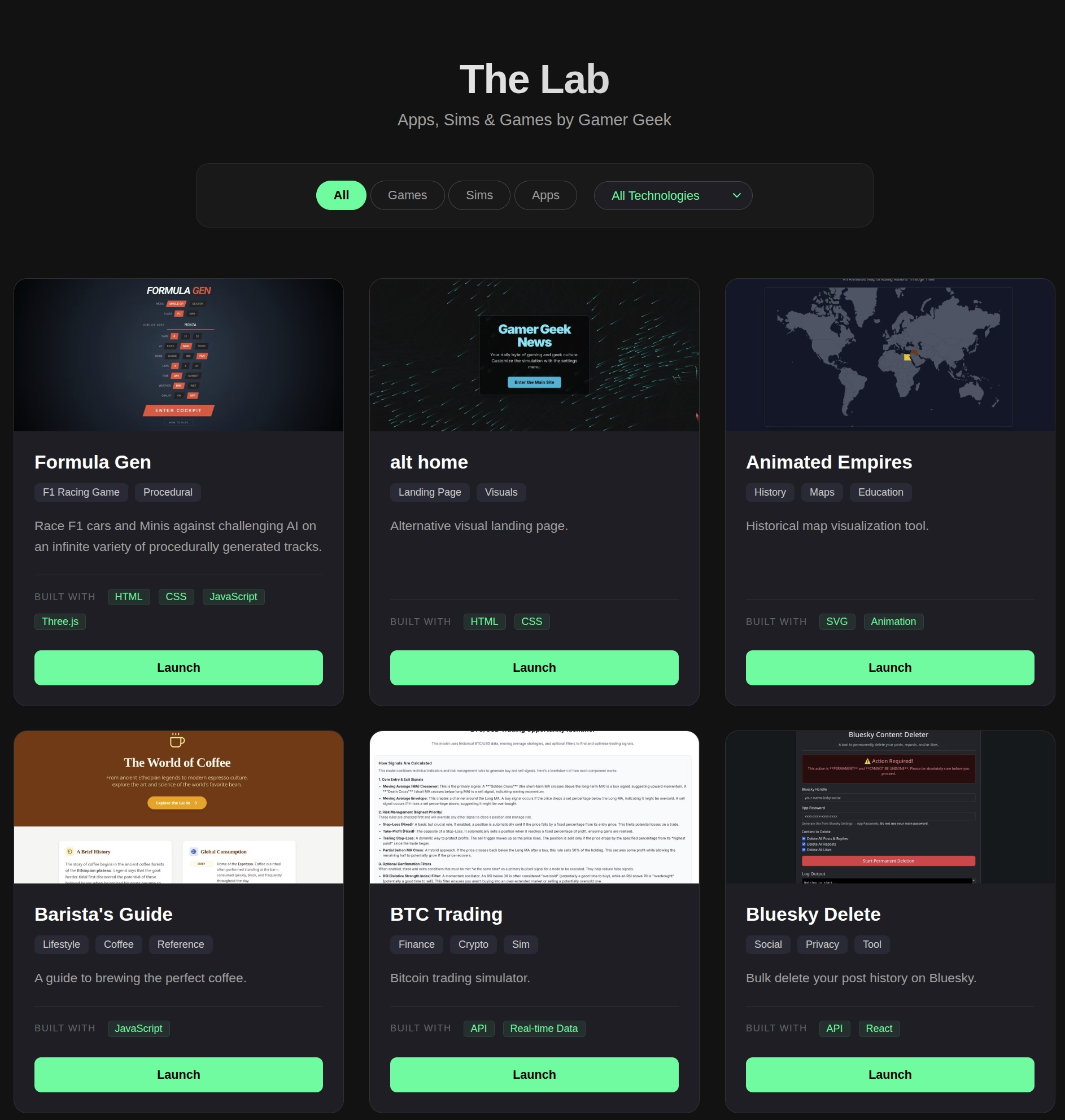

A curated collection of web games, simulations, and apps built by Gamer Geek News. Explore projects built with Three.js, Python, React, and more. I’ll be the first to admit it: I’m a “lazy” poster. Looking back over the ~15 years I’ve been sharing projects on this domain, the frequent long gaps in my post history tell a clear story. I love building things, but the administrative overhead of documenting them—writing the post, formatting the links, and manually capturing screenshots—often feels like a hurdle. Consequently, many of my favorite experiments end up “hidden” in the depths of a GitHub repo or living un-indexed on a random subdomain. To resolve this, I finally built The Lab Showcase. I wanted a system that was low-friction: no database, no heavy CMS, just a simple The biggest bottleneck in any portfolio is the screenshots. Manually opening 50+ URLs, waiting for the canvas to render, and cropping images was exactly the kind of task that would stop me from ever updating the page. Instead, I wrote a Python Selenium script to do the heavy lifting. The script iterates through my JSON file, launches a headless browser, and takes the captures for me. To ensure I wasn’t just getting “empty” loading screens for heavy Three.js projects, I built in a staggered wait time: To finish it off, I used the Pillow (PIL) library to automatically crop the images to a 16:9 aspect ratio and resize them to 800x450px. This ensures the showcase grid looks professional and aligned without me ever having to touch an image editor. From procedural F1 racing sims to interactive instruments and climate models, the Lab is now live. If you’re a developer looking to build your own “lazy” portfolio, I highly recommend the JSON + Automation route. It turns a chore back into a hobby.The Solution: A JSON-Driven Showcase
projects.json file. By defining my projects in a structured format, I can update the entire page just by adding a few lines of text.Automating the Visuals with Selenium
# Selenium Automation Snippet
def capture_screenshot(url, save_path):
    options = webdriver.ChromeOptions()
    options.add_argument("--headless=new")
    driver = webdriver.Chrome(options=options)

    driver.get(url)
    # Give Three.js and textures time to initialize
    time.sleep(5)

    driver.save_screenshot(save_path)
    driver.quit()